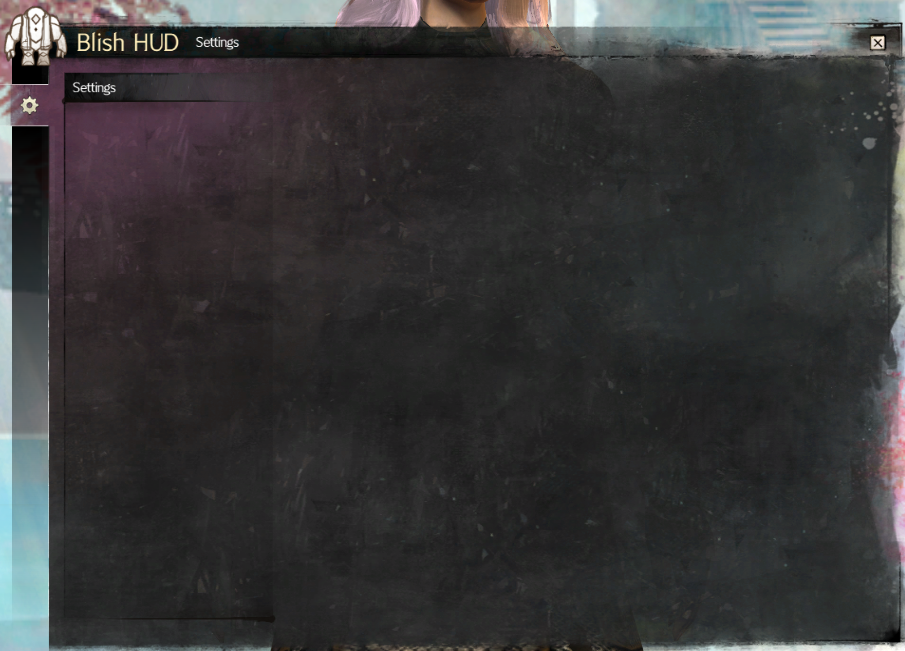
Main Blish HUD window is empty
Example
Solution
This is typically caused by Blish HUD missing some resource files (those stored within the Content folder).
- Redownload Blish HUD.
- Right-click the .zip file and select Properties.
- Select the Unblock checkbox (if one is shown) and select OK. If this checkbox is not shown, then you can ignore this step.
- Extract the entire ZIP to a safe location.
- Open Blish HUD again.
Blish HUD should now function as expected.