Performance Troubleshooting
Issue
While running Blish HUD you see significant game performance impacts.
Overview
Blish HUD is designed to use few CPU and GPU resources. Medium and high-end systems should see little to no measurable performance impact while running Blish HUD.
While troubleshooting Blish HUD performance, run Blish HUD with no modules enabled. If you have modules enabled, disable them and then restart Blish HUD. If you see a substantial impact (for example, an FPS drop of 10 or more), please review the solutions listed in this guide, as there is likely a misconfiguration causing the performance impact, which can be solved.
If your performance issue only occurs while certain modules are enabled, please reach out in the Blish HUD Discord #💢help channel so that the performance of the module can be more closely evaluated by its developer.
Solutions
Evaluate Blish HUD Graphics Settings
By default, Blish HUD is configured to match your monitor refresh rate. If you have a high refresh rate monitor, you can try setting Blish HUD's frame limiter to either 90 or 60 FPS. If you don't rely on modules that render 3D elements (such as Pathing or Racing Meter), you can even try setting it to 30 FPS.
Ensure Blish HUD and Guild Wars 2 are using your dedicated GPU
Those with an integrated GPU (iGPU) and a dedicated GPU may find that their performance issues are caused by either Blish HUD, Guild Wars 2, or both running on the wrong GPU. In your computer settings under System > Display > Graphics ensure that both Guild Wars 2 and Blish HUD are configured to use your high-performance GPU.
You will know you've done this successfully if both applications are shown as using the same GPU engine in Task Manager:
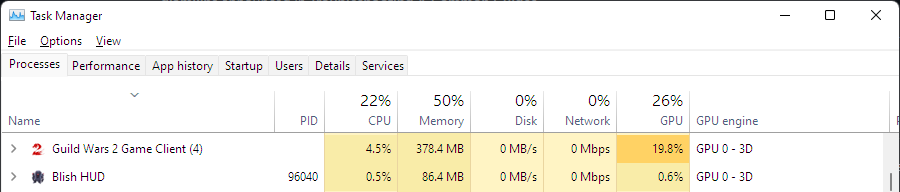
In this case, the dedicated GPU is GPU 0, but it may be GPU 1 for you.
Other things to check
- For those of you using a desktop computer with a dedicated GPU, double-check that your monitors are plugged directly into the GPU and not into the ports on your motherboard.
- Ensure none of the Debug settings are enabled in Blish HUD unless asked by somebody assisting you with troubleshooting. These introduce additional overhead, which could cause slight performance impacts.
- In the NVIDIA Control Panel under 3D Settings > Manage 3D settings, ensure Background application Max Frame Rate is Off.